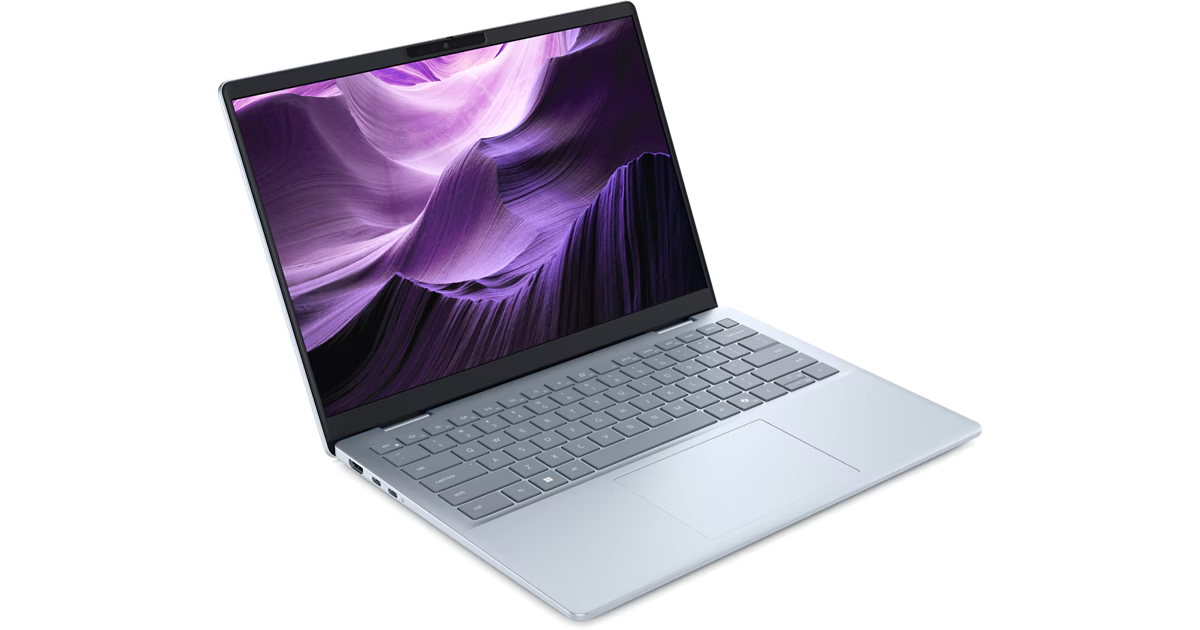
Does your laptop feel like it’s burning your lap, or do the cooling fans sound like a jet engine ready for takeoff? Overheating is one of the most common issues laptop users face, and if ignored, it can cause permanent damage to your hardware.
Luckily, you don’t need to be a tech expert to cool things down. Here are 7 easy solutions to fix an overheating laptop.
1. Keep Your Laptop on a Hard, Flat Surface
Using your laptop on a bed, pillow, or your lap blocks the air vents located on the bottom and sides. Always place your laptop on a hard, flat surface like a desk or a wooden board to allow proper airflow.
2. Clean the Dust from Vents and Fans
Over time, dust and pet hair get sucked into the laptop’s vents, clogging the cooling fans. Turn off your laptop, unplug it, and carefully use a can of compressed air to blow the dust out of the side and bottom vents.
3. Invest in a Cooling Pad
A laptop cooling pad is an inexpensive accessory that sits under your laptop and uses its own built-in fans to push cool air directly into your system. It plugs right into your USB port and works wonders for gaming or heavy workloads.
4. Close Background Applications
The harder your CPU (processor) works, the hotter it gets. Close heavy programs, browser tabs, and background apps that you aren’t currently using. You can check the Task Manager (Ctrl + Shift + Esc) to see which apps are consuming the most CPU power.
5. Adjust Your Power Settings
Windows laptops often run on “High Performance” mode, which maximizes speed but generates a lot of heat. Go to your Power & Battery settings and switch the power mode to “Balanced” or “Power Saver” to reduce the strain on your system.
6. Keep Your Room Cool
Your laptop’s cooling system relies on the air around it. If your room is very hot, your laptop will be too. Try to work in a well-ventilated, air-conditioned room, and avoid leaving your laptop in direct sunlight or inside a hot car.
7. Check for Malware
Certain types of malware, like crypto-miners, silently run in the background and use 100% of your computer’s resources, causing massive overheating. Run a full system scan using Windows Defender or your preferred antivirus software.
Conclusion By keeping your laptop clean, ensuring good airflow, and managing your software, you can easily solve most overheating problems. Protect your investment and enjoy a faster, cooler PC!