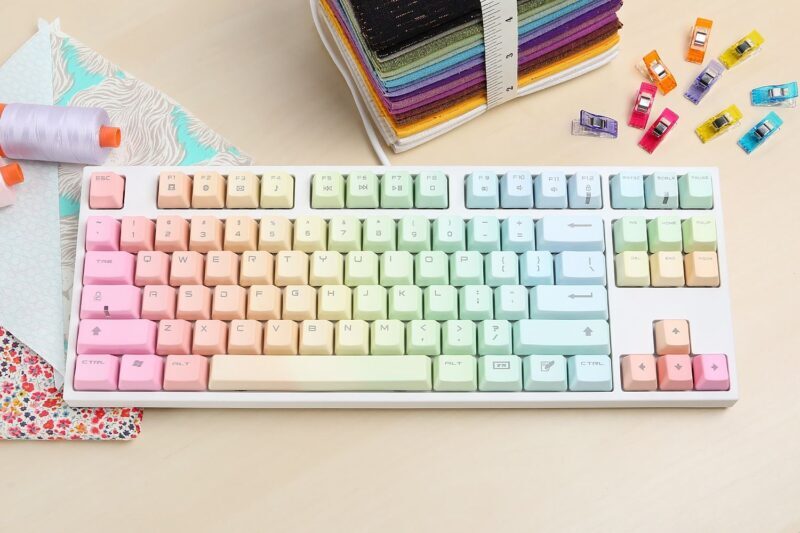
Using a mouse for every single task on your computer can slow you down. If you want to navigate your PC faster and boost your daily productivity, learning a few basic keyboard shortcuts is the best place to start.
Whether you are a student, a professional, or a casual user, here are 5 essential Windows keyboard shortcuts that everyone should memorize.
1. The Basics: Copy, Cut, and Paste
These are the most famous shortcuts in the world, but they are worth repeating. Instead of right-clicking text or files, highlight them and press Ctrl + C to copy or Ctrl + X to cut. Then, move to your destination and press Ctrl + V to paste. This simple habit saves countless clicks every day.
2. Windows Key + D: Show the Desktop
Is your screen cluttered with a dozen open windows and you need to open a file on your desktop? Instead of minimizing each app one by one, simply press the Windows Key + D. This instantly hides all windows and shows your desktop. Press it again to bring everything back exactly as it was.
3. Alt + Tab: Switch Between Open Apps
If you are working on a project that requires jumping between a web browser and a Word document, this shortcut is a lifesaver. Press and hold the Alt key, then tap Tab. A small menu will appear showing all your open apps. Keep tapping Tab until the app you want is highlighted, then release the keys.
4. Ctrl + Z and Ctrl + Y: Undo and Redo
Did you accidentally delete an important paragraph or move a file to the wrong folder? Don’t panic. Press Ctrl + Z to instantly undo your last action. If you realize you actually didn’t want to undo it, you can press Ctrl + Y to redo the action and put things back.
5. Windows Key + Shift + S: Take a Custom Screenshot
You don’t need to press the Print Screen button and crop the image later in Paint. By pressing Windows Key + Shift + S, your screen will dim, and you can click and drag your mouse to capture the exact portion of the screen you want. The image is automatically saved to your clipboard, ready to be pasted anywhere.
Conclusion It might take a few days to build the muscle memory for these shortcuts, but once you do, you will never want to go back to relying solely on your mouse. Start practicing these combinations today to use your Windows PC like a true professional!